How to Search for Contracts on SAM.gov (Without Wasting Your Whole Weekend)
A step-by-step guide to searching SAM.gov like a pro. Learn the keyword method, NAICS code shortcuts, notice types, set-aside filters, and how to stop chasing dead listings.

Tiatun T.
Federal Sales Consultant · Feb 19, 2026
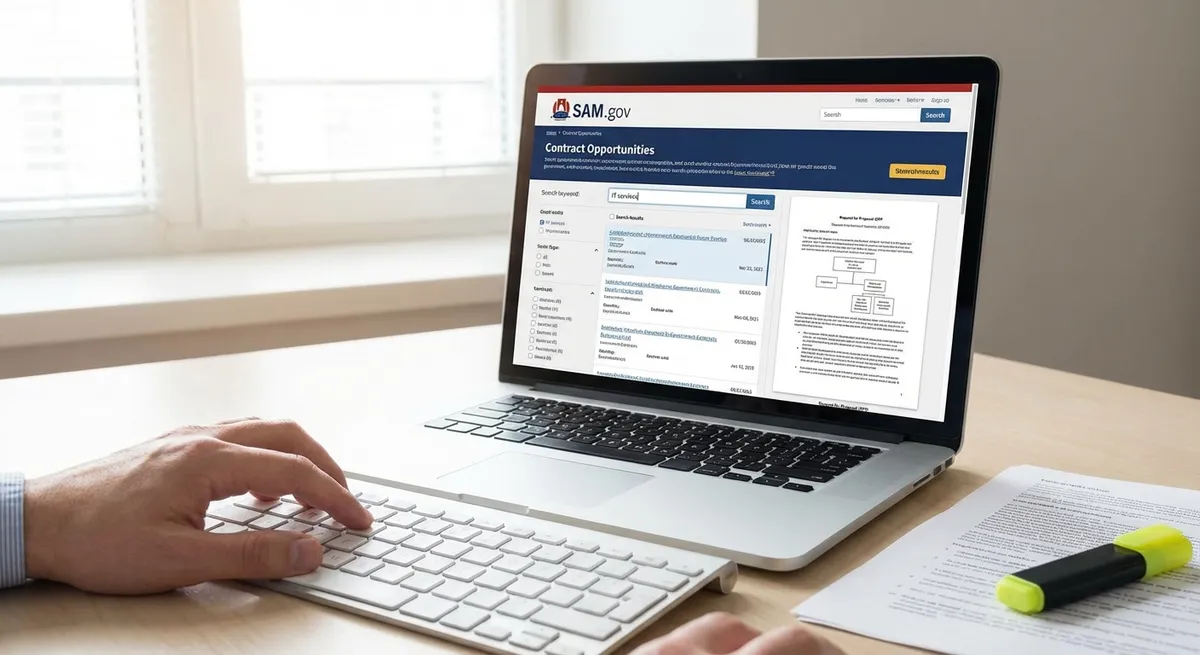
How to search for contracts on SAM.gov is the skill that saves you hours, saves you headaches, and keeps you from chasing random listings like a dog chasing a laser pointer.
If you've ever opened SAM.gov, stared at the screen, and thought, "Cool… where are the actual contracts?" you're not alone.
Most new GovCons feel the same thing.
Confused. Overwhelmed. Low-key worried they're missing "the good stuff." And annoyed that the site feels like it was built in 2006 and nobody told it time moved on.
Here's the deal. You don't need secret tricks. You need a clean search method. And you need to stop clicking around like you're at a buffet with no plate.
In this post, I'm going to walk you through the exact approach that works. Simple. Repeatable. And built for real people who want to find real federal contract opportunities.
And yeah, i'll share the little moves that keep you from wasting time, like using keywords to "follow the clues" into NAICS codes.
What SAM.gov Is (And What It Is Not)
SAM.gov is for federal contracts. That's it. All 50 states, federal level.
You will not find city contracts here. You will not find state contracts here. You will not find "SLED" stuff here.
So if you're hunting local work and you're mad SAM.gov isn't showing it… That's like going to a pizza shop and yelling that they don't sell tacos.
Start Here: The Fastest Way to Search Contract Opportunities
Go to SAM.gov. Go to Contracting. Then go to Advanced Search.
The move is to bounce over to the advanced search and get right into it. Basic search feels like trying to find a specific book in a library by yelling the title into the lobby.
Advanced search gives you control. Control saves time.
Keyword Search on SAM.gov (The "Follow the Clues" Method)
Keywords are your first flashlight. They help you see what's out there. Then you use what you learn to tighten the search.
Take janitorial work as an example. You'd try keywords like: janitorial, housekeeping, custodial
And here's the move. Start broad early. Then narrow down later. That's how you stop missing opportunities you didn't know existed.
Any Words vs All Words vs Exact Phrase
SAM.gov lets you choose how strict the keyword match is.
-
{[
{ label: "Any words", detail: "The results can contain one, some, or all keywords you typed. Early on, this is the best option so you can get clues for better filters later." },
{ label: "All words", detail: "The results contain all keywords you typed. Good if you want to \"weed out a lot\" and you know exactly what you want." },
{ label: "Exact phrase", detail: "The results contain that exact phrase in that order. Good for longer phrases." }
].map((item, i) => (
- ✓ {item.label} — {item.detail} ))}
If you're new, "any words" keeps you from over-filtering yourself into zero results. Zero results feels productive. It's not.
Search Editor (Cool Feature, Skip It Early)
SAM.gov has a search editor that lets you build rules. For example: "rental and property", "leased and property and not short-term"
It can get very tight. For most beginners, it's too tight. You'll spend 30 minutes building a rule and end up with 2 listings from 2019. So yes, it exists. Play with it later.
Use a Solicitation Number If You Have One
If you already know a solicitation number, put it in the keyword box. That usually pulls up one opportunity. Maybe a couple if there were amendments. This is for when you're returning to something you already found. Not for browsing.
NAICS Codes on SAM.gov: The Shortcut to Cleaner Results
NAICS codes are where searches start getting real.
Here's the deal with NAICS. Every good or service that's bought in the country is tagged with a NAICS code. And it's not just GovCon. Even banks ask for it when you open a business account.
So the government thinks in tags. If you learn the tags, you stop guessing.
Real Example: Janitorial and NAICS 561720
Run "janitorial" and "custodial" and you'll get around 200+ results. Check a few listings and you'll see the same NAICS showing up: 561720.
So search by NAICS 561720 directly. And the results tighten up.
Here's something important. The keyword search had more results than the NAICS-only search. That tells you the work might show up under more than one NAICS code.
That's the "follow the clues" method. Start with keyword noise. Pull out the NAICS signal.
Build Your "Search List" in a Doc or Spreadsheet
Start making a list of: keywords that work, NAICS codes that show up, maybe notes on what you keep seeing.
What to track:
-
{[
"Keywords that work",
"NAICS codes that show up",
"Notes on what you keep seeing"
].map((item, i) => (
- ✓ {item} ))}
Use Excel. Use a Word doc. Use a napkin if you're desperate. This list becomes your personal search engine. And it stops you from starting over every time you log in.
Federal Organizations Filter: Pick a Target Agency
You can filter by agency. Army. DoD. VA. DOT. And more.
Why would you do this? Maybe you already know which agencies buy the most of what you sell. So you filter to that agency and focus there.
Try the Army as an example. Filter Army + NAICS 561720 and you'll see a smaller, more focused list.
And the titles start showing real variety, like:
-
{[
"\"Custodial services\"",
"\"Kitchen deep cleaning\"",
"\"Janitorial\" at specific facilities"
].map((item, i) => (
- ✓ {item} ))}
This helps you learn what the government calls the work. That matters, since your future proposals need to match their language.
Response Date Filter: Stop Looking at Stuff You Can't Bid
If you want live bids, you need the response date filter — look for "response date offers due."
Try filtering to:
-
{[
"Next month",
"Next 3 months",
"Whatever you can handle"
].map((item, i) => (
- ✓ {item} ))}
If you don't filter by response date, you'll read a listing, get excited, click attachments… Then realize it closed 8 months ago. That feeling is trash.
Notice Type: The 4 Stages You'll See Over and Over
Notice type works like a 4-step flow. And once you get this, SAM.gov stops feeling random.
Most opportunities flow through these stages:
-
{[
"Sources sought",
"Presolicitation",
"Solicitation / Combined synopsis solicitation",
"Award notice"
].map((item, i) => (
- {i + 1} {item} ))}
This matters since each stage means a different action.